Well, another thing I want to state, I'm not going to teach how to use ecompile.exe nor the windows registry system, for two reasons I don't know and I don't want, pretty straightforward here, but it's the truth, so go ahead and read on.
Go to "Start", "Run" then type "regedit" then hit ENTER. See it happening: http://i4.photobucket.com/albums/y111/A ... egedit.png
You'll have there a tree-like structure, like in Windows Explorer, but instead of folders, you have what they call "Keys", I'll call they "Folders", just because I'm not used to registry, it's easy to me calling that way and they are pretty much a folder with another name. See it happning: http://i4.photobucket.com/albums/y111/A ... e-view.png
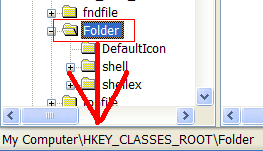
Inside this "My Computer" folder, go to "HKEY_CLASSES_ROOT", then go to a folder calle "Folder". See it happening: http://i4.photobucket.com/albums/y111/A ... folder.png
There are some folders inside "Folder" folder, one of them is called "shell", righ click at "shell" folder and select "new" then "key". What will appear is a new folder asking to be renamed. See it happening: http://i4.photobucket.com/albums/y111/A ... ew-key.png
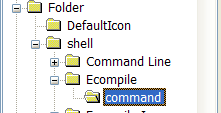
Name this folder to "Ecompile", right click it, again "new" and "key", now, this key need to be called "command". See it happening: http://i4.photobucket.com/albums/y111/A ... ommand.png
Now, I bet you're smart enough to see that the window is splitted into two columns, we've been working only at the left column. Inside "command" folder you'll see at the right column a file (it's not a file, but it's pretty much like one) called "default", now you'll double click it, a new dialog will appear. See it happening: http://i4.photobucket.com/albums/y111/A ... dialog.png
There are two input boxes there, one of them is called "Value data", you'll type the following text replacing POLFOLDER to your pol folder: "POLFOLDER\scripts\ecompile.exe" -b -f -r %1 >ecompile.log. Caution here, YOU NEED TO PUT THOSE QUOTES. See it happening: http://i4.photobucket.com/albums/y111/A ... filled.png
Now hit ENTER and done, now when you right click a FOLDER, you'll be able to select an item there called "Ecompile" that will compile everything inside the folder for you and subfolder as well.
=======================
This is an update to the guide.
=======================
instead of:
"POLFOLDER\scripts\ecompile.exe" -b -f -r %1 >ecompile.log
use:
"POLFOLDER\scripts\ecompile.exe" -b -f -w -r "%1"
I've just realize that ecompile.log wasn't being created.
If you want an ecompile.log, which is REALLY useful, here follows a guide.
=======================
Make a new file, with "BAT" as extention, for example, pc.bat (Pol Compile), now write in it the following:
"POLFOLDER\scripts\ecompile.exe" -b -f -w -r "%1" > ecompile.log
Replace POLFOLDER by your pol folder, in my case, now, "D:\POL\", so the contents of "D:\POL\pc.bat" is:
"D:\POL\scripts\ecompile.exe" -b -f -w -r "%1" > ecompile.log
in the registry entry, instead of:
"POLFOLDER\scripts\ecompile.exe" -b -f -w -r "%1"
use:
"POLFOLDER\pc.bat" "%1"
THIS TIME I'VE TESTED THE SHIT

****BUG****
You should use this tool only in "left side folders" (I mean, use them only in the folder toolbar of the windows explorer), if used in the file list (right side list of files) it doesn't work properly. Also, if you're compiling from the "right side file list", ecompile.log will be generated in the folder you are in, not in the folder you've selected to compile everything inside
****BUG CORRECTION****
In the pc.bat file, add this line before the line it have.
cd %1\
So, it'll end up like this:
cd %1
"POLFOLDER\scripts\ecompile.exe" -b -f -w -r "%1" > ecompile.log